How I Timed a 500-Kid Meet With Two iPads (well…three), a Laptop, and a Stack of Copy Paper
The hardest job at timing a meet isn’t starting the clock or filming the finish. The camera and the mic handle that. The hard job is the part that comes right after — scrubbing back through the captured footage, picking the exact frame each runner crosses the line, and tagging that mark to the right lane. Heat after heat.
Doing all that on an iPad touchscreen works fine for a dual meet. It starts to hurt at a 200-kid invitational. At 500 kids, the iPad operator becomes the bottleneck — the next race can’t start until the last one is reviewed.
This spring I rebuilt my setup around a simple idea: let each device do exactly one job. The primary iPad films. Additional iPads film from different angles as a backup and provide alternate looks. A laptop does all the review work and shows the running clock big enough for spectators to see. Bibs printed on regular copy paper make every runner readable straight off the captured frame.
It worked. We ran a 500-kid middle school league meet with this rig and live results were posting to families in near real time. We were flying — we had over 30 heats of the 100m alone and were starting a new race every 60 seconds! The split workflow enabled us to start race-after-race as soon as the kids and starter were ready. Here’s the whole setup.
The Rig
Three (or four) devices, three jobs:
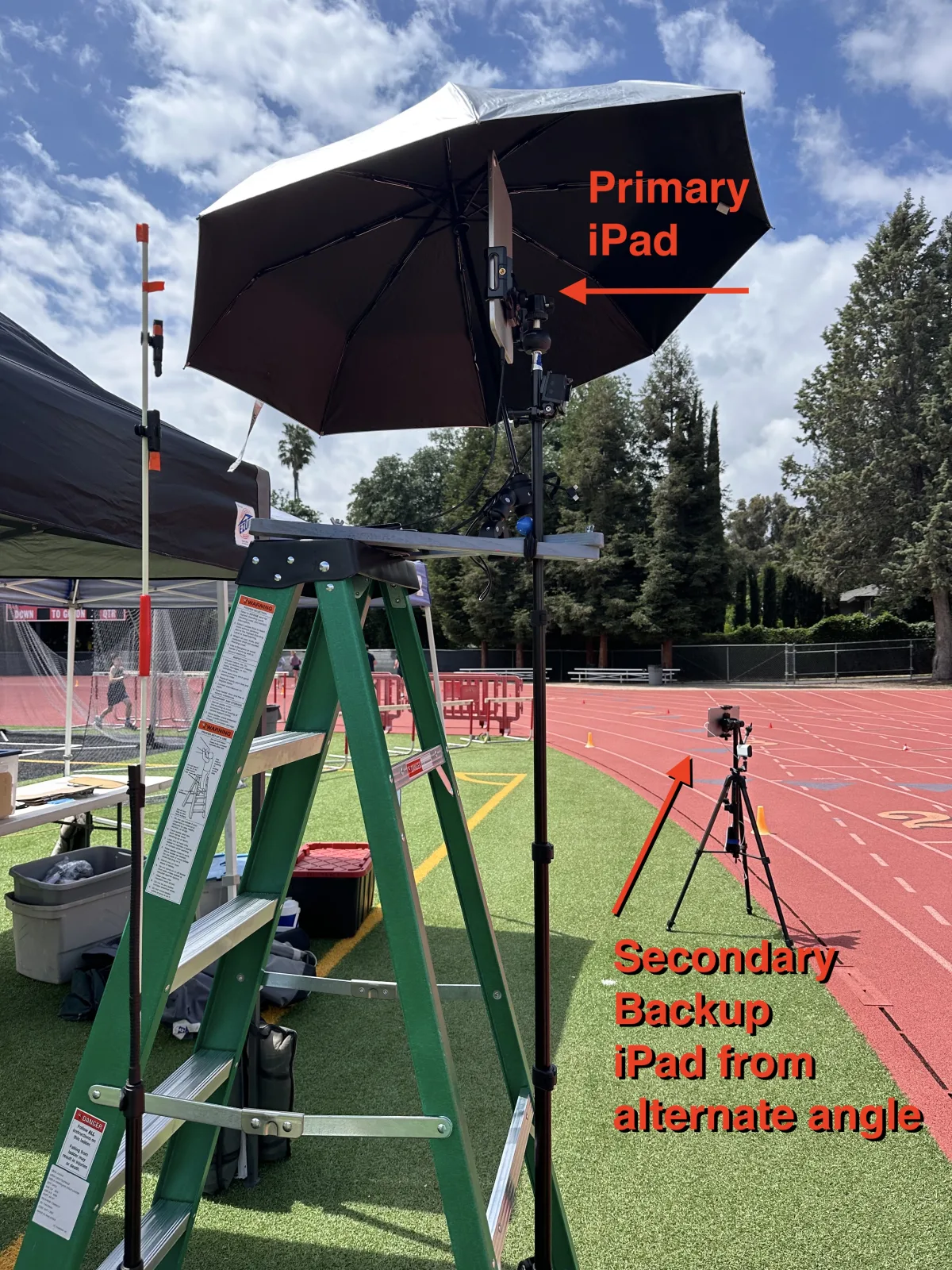
- Primary iPad on a tripod or step ladder — the camera. Starts on sound from the wireless mic, films the finish, streams the captured footage via its built-in webserver. Once the operator hits go, they don’t touch it again until they’re firing the next race.
- Secondary iPad/iPhone on a tripod past the finish line looking back toward it — a second angle with view of the bibs. Acts as a redundant backup if the primary has a problem, and gives you a different look that can also read the bib numbers of the finishers.
- Optional third iPad/iPhone — yet another view. For this meet I had it on the opposite side of the track near lane 8 and slightly after the finish line. You can’t have too many backups and too many views!
- Laptop on a folding table — connects to the primary iPad’s web interface over the local network. A real keyboard and mouse make scrubbing through frames and tagging lanes way faster than a touchscreen ever will. Plug a monitor into the laptop, open the running-clock page, and full-screen it for visibility in the stands.
That’s the core for timing.
Then for seeding the heats we had two helpers entering athletes on their phones:
- Helper 1 — down at the start line, creating heats and entering kids by bib number by lane. They had no problem staying ahead of the workflow even when we were firing off one race a minute.
- Helper 2 — for longer races where kids were not in lanes, we created a finish chute of hurdles and another helper would enter their bib numbers in finish order after they crossed the line.
Why a Second iPad/iPhone
A backup camera buys you three things:
- Insurance. If the primary camera flakes — battery dies, mic drops the start, kid bumps the tripod — the secondary footage is right there in the same web interface and you don’t lose the heat. Our iPad app can be put in secondary “Backup Mode” where it’s constantly recording at a slower (configurable) frame rate. These keep recording no matter what the primary iPad is doing.
- Visible bib numbers. This was crazy helpful. When bibs are visible on camera, you can instantly identify a kid. Human error happens (mistyped bib numbers, kids out of order in a finish chute, etc). This speeds up recovery exponentially.
- A second angle on close finishes. Two iPads at slightly different positions catch slightly different views of the line. When you’ve got a half-step photo finish, being able to flip between primary and secondary in the review screen is the difference between a guess and a clean call.
You don’t need a fancy second iPad. An older iPad or iPhone you already own will do. Install the same RaceApp iOS App, then toggle on back-up mode and scan the QR code from the main iPad’s setting interface. From there everything automatically syncs. The backups record at a lower frame rate to save on space. You can even use something as old as a 2nd Gen iPhone SE which you probably have in a junk drawer at home (or can be purchased used for less than $75).
Why Paper Bibs Matter More Than You’d Think
This is the small thing that makes the whole rig work. We printed bibs on standard 24lb copy paper, big numbers, safety-pinned to jerseys. That’s it.
A few notes from a 4-hour meet:
- They held up. No rain. Less than 1% rip rate over the day. The kids who did rip a bib fell back to a Tyvek wristband as a backup ID.
- They’re readable on video. Big bib numbers are clear in the captured footage. When the human element of fixing flubs kicks in — “wait, who was actually in lane 3?” — you can read the answer right off the frame.
- They speed up lane entry. The helper at the start line doesn’t have to ask each kid to show their wrist. They look at the bib, type the number into the Race Editor, done. Two heats ahead of the starter all day.
I now recommend paper bibs for all track meets. Even if you don’t do a multiple iPad set-up, have a helper record each race on their phone or use something like an inexpensive GoPro knock off to record the entire meet. It’s cheap insurance that ensures you can recover when the unexpected happens.
What the Laptop Sees
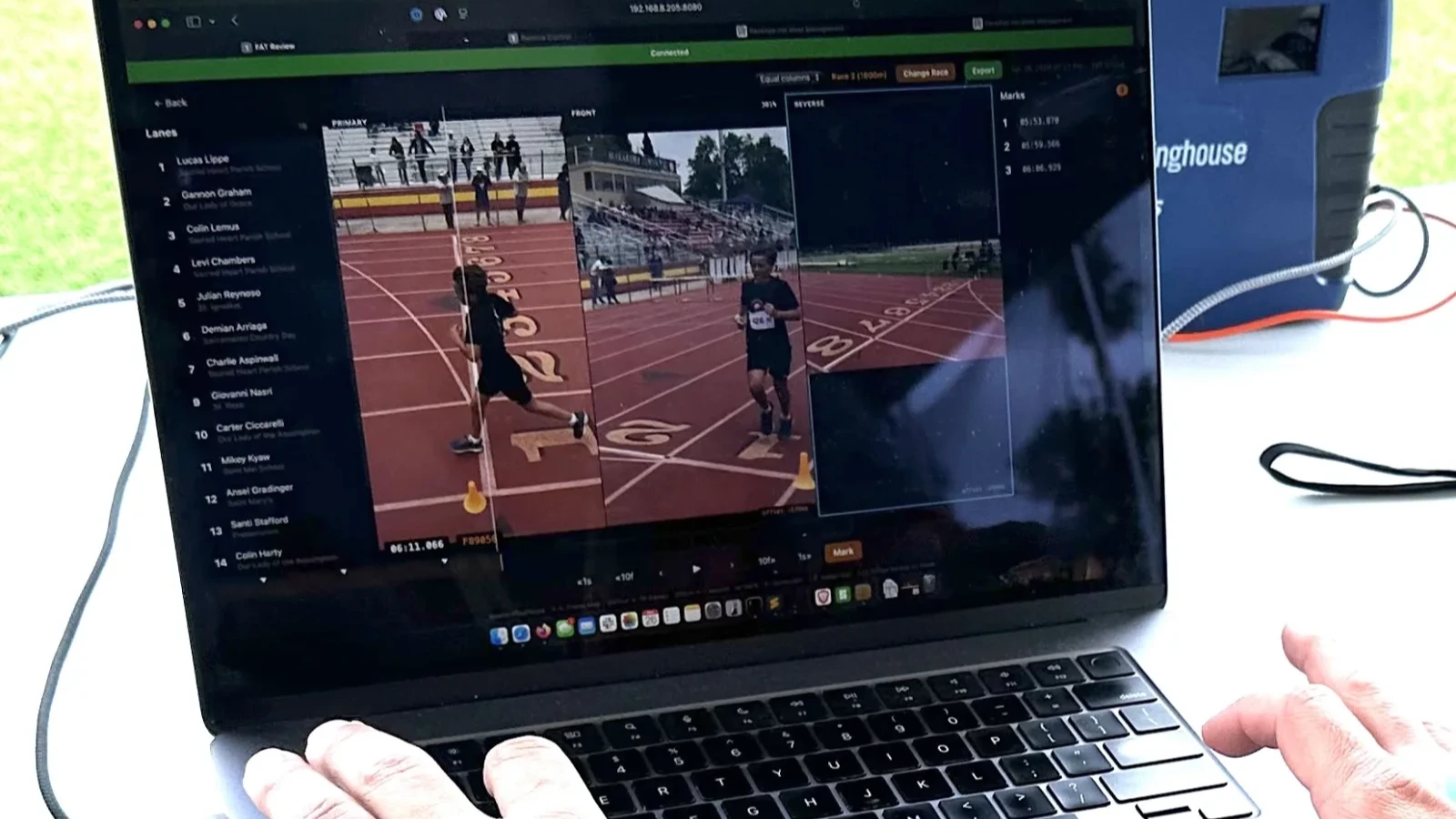
The laptop view is where the multi-camera setup pays off. The web interface lays the captured feeds side by side — primary, secondary, and any other angles you have running — with the lane list and the marks panel right there. Scrub one feed, cross-reference another, tag each runner at the exact frame, export.
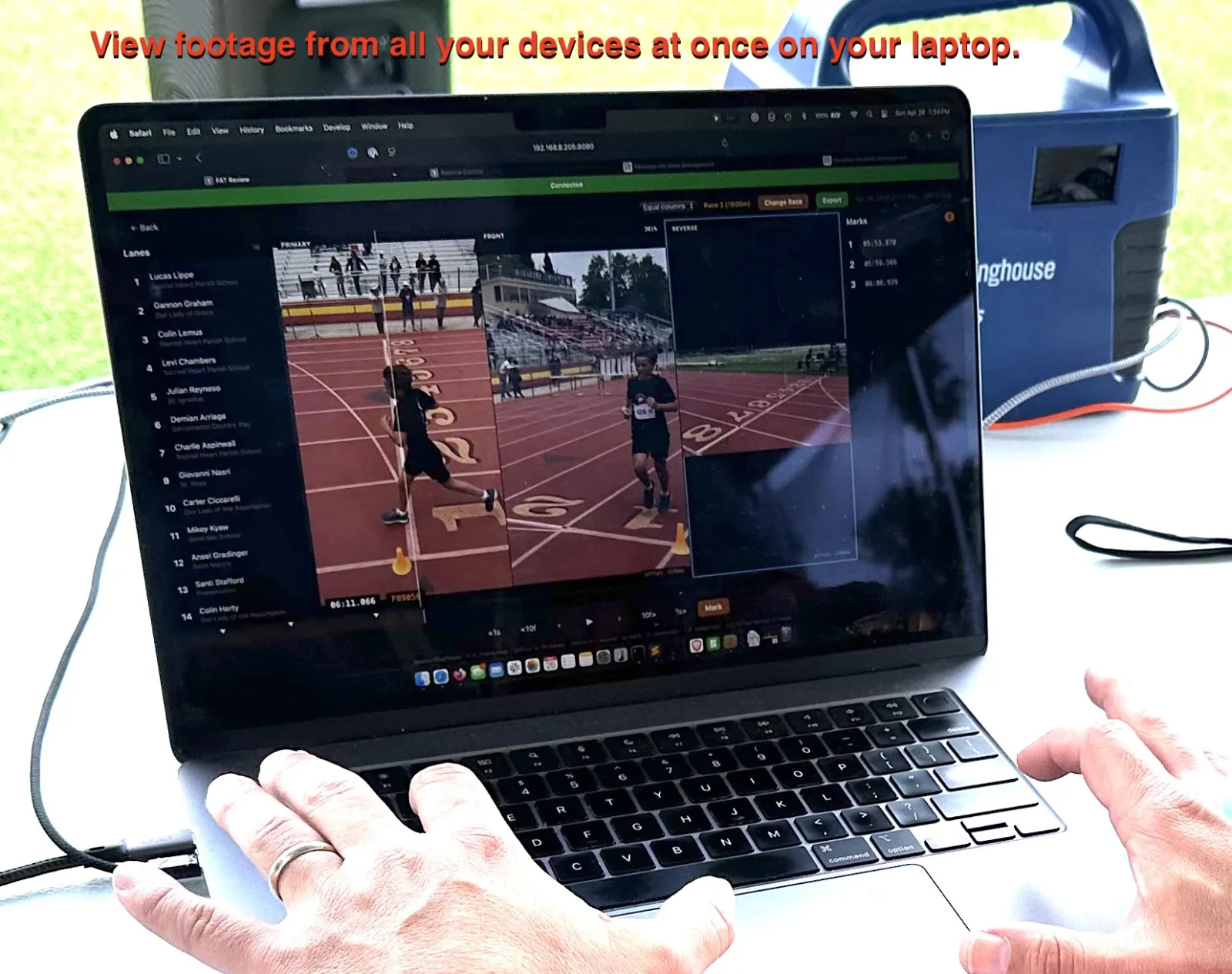
Three reasons the laptop is the right tool for this job:
- Two people, two different jobs. The iPad operator focuses on making sure you catch each start with no need to wait for marking. This is the key to fast meets. The laptop operator marks the results independently. If they fall behind, it does not hold up the meet.
- Keyboard speed. Scrubbing through video with keyboard shortcuts beats finger taps by a mile. You can literally mark an 8-lane finish in half the time it takes on the iPad screen, plus you can sit at a table instead of standing up on the ladder.
- Bigger target. The review screen lays out bigger on a laptop than on an iPad. Easier to see splits between runners, and easier to view multiple videos at once.
A secondary monitor is a nice touch for spectators. The primary iPad’s web server hosts a running clock screen that you can put on a big display and face toward the spectators. This especially improves the experience for multi-lap races.
What It Looked Like at Real Meets
I ran this rig at seven meets this April and May:
~300-kid High School Center Meet. Single primary iPad, laptop on a folding table under a pop-up, 27” monitor on a battery pack. Entries pre-seeded from Athletic.net (more on that below). The reviewer never touched the iPad.
4x My own 150-kid MS meets. Same gear, simpler flow. A high-school helper at the start line had the Race Editor open on her phone and was entering bibs in lane order as kids stepped to the line. We were two heats or more ahead of the starter all day. The iPad never got touched between starts.
2x 500+ kid MS league meet. Helping a paying RaceApp customer from my own town. Three iPads (primary + 2 backup angles), laptop, paper bibs. Thirty heats of the 100m. A starter firing races every 60 seconds. Our helper kept the lane assignments well ahead of the gun, all iPads rolled from one start to the next, and one person on the laptop did all the reviews. Live results posted before kids got back to their tents.
The Gear List
Nothing exotic. Most coaches already own most of this.
- Primary iPad/iPhone (any model that runs the RaceApp FAT app)
- Secondary iPad/iPhone for backup/multi-angle (an older device is fine)
- Tripods for all devices, plus a ladder or tall tripod to get angle across the lanes
- Wireless mic kit (free with a new FAT subscription)
- Laptop — any laptop. A Chromebook works but a nicer laptop provides smoother scrubbing.
- External monitor — I’ve used everything from a 24” LCD to a portable USB-C field monitor. Bigger is better for crowd visibility. A battery-powered portable monitor is the right move if you don’t have power at the finish.
- HDMI or USB-C cable, whichever your laptop and monitor need
- A way to share network — school wifi, a phone hotspot, or a ~$35 travel router. See the Back to Basics post for why you probably want the travel router at bigger meets.
- Copy paper for bibs — 24lb works great. Print, cut, safety-pin. Tyvek wristbands as a backup ID for the rare ripped bib.
How to Actually Run It
- Set up the iPads. Primary at the finish on a tripod, secondary on a tripod ahead of the finish line aiming back toward it, mic at the start. FAT app running on both.
- Join everyone to the same network. Laptop, phone, secondary iPad, anything else. The iPads’ webservers are on your local network, not the internet.
- Pair the secondary iPad(s)/iPhone(s) to the primary. The primary will show a QR code that backup iPads can read.
- Open the web interface on the laptop. Open the IP address of the primary iPad. The review screen shows feeds from all your devices at once.
- Plug the monitor into the laptop. Open a second browser tab to the running-clock page and drag it to the monitor. Full-screen it (F11 on most browsers).
- Assign lanes. A helper at the start line opens the Race Editor on a phone, taps the big “+” button, picks “Start Line,” and enters bibs in lane order as kids step to their lanes. For non-laned events, pick “Finish Line” and enter by place after the race.
- Start the race. The mic sound triggers the start on the primary iPad. The clock starts. The monitor shows it huge.
- Fire the next race. As soon as the finish is captured, the iPad operator queues up the next heat — they don’t wait for the review.
- Review on the laptop. Scrub the primary feed using the arrow keys (secondary feeds move right along with it), tap “M” for mark, tap the lane number. Scrub to next runner, repeat. Export.
To enable this workflow, all you need to do is turn on the primary iPad’s webserver in the Settings.
One More Thing
At the HS meet, we used a private beta Athletic.net RunMeet integration to pull in team sign-ups, pre-seed the heats, and push results back to Athletic.net automatically. It worked. It’s not something you can flip on yet — I’m still hardening it with a handful of teams — but if you’d like to be part of that beta, email me.
Start Where You Are
You don’t need to build the whole rig at once. The order I’d add things in:
- Add the laptop. Single biggest upgrade. Reviews stop being the bottleneck.
- Add the second iPad. Insurance plus a second angle on close finishes.
- Print paper bibs. Pin them on, never look back.
- Add the monitor. Now everyone can see the clock.
If you can run RaceApp on an iPad today, you can run it this way tomorrow. And once you have, you’ll never go back to reviewing 50 heats on a touchscreen.
| Get started free | See pricing | Read the basics |